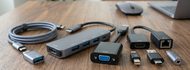
Computer ports - explained
Jun 16, 2026
Here’s a problem we hear on the phone more than you’d think: someone plugs a cable into their laptop, and nothing happens. No charge. No second screen. No data. The port looked right. It fit. But the laptop sat there doing nothing.
Nine times out of ten, it’s not a broken port. It’s that two ports on the same machine can look identical and do completely different jobs — and nobody told you which was which. So here’s the honest, plain-English guide to every port you’re likely to find on a computer: what it looks like, what it’s for, and how to tell the tricky ones apart.
This applies whether you’re staring at the side of a laptop or the back of a desktop tower — the ports are the same, there are just usually more of them on a desktop.
The ports you can identify by shape
The quickest way to recognize a port is by the cable that fits it — the plug and the port are matching shapes. So below, each picture shows the cable connector, and the port on your laptop or desktop is the same shape, just hollow instead of solid. Match the cable in your hand to the picture, and you’ve found your port.
USB-C — the small rounded oval
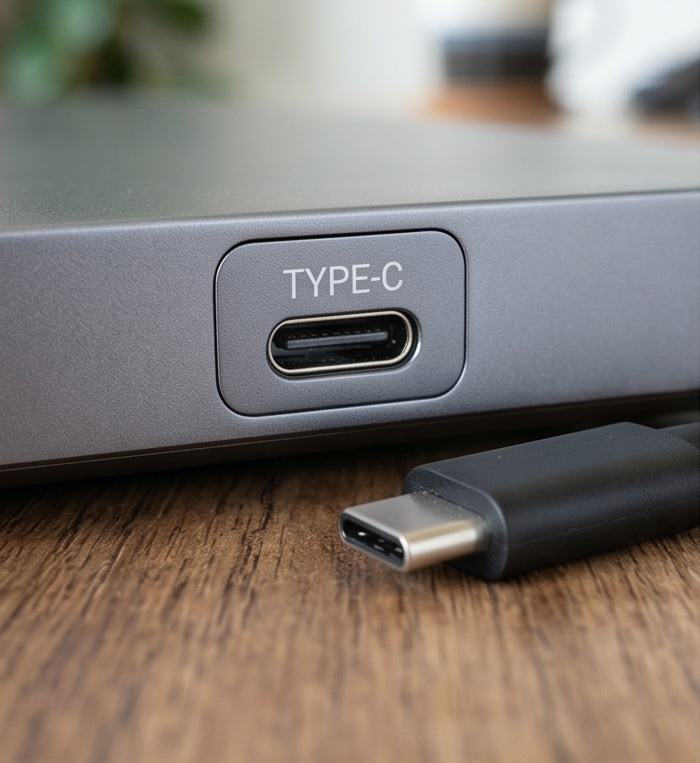 |
Small, symmetrical, rounded on both ends — and reversible, so the cable goes in either way up. The matching port is doing most of the work on modern laptops: data, video, and charging can all run through it. Emphasis on can. More on that below, because this is exactly where people get caught out.
The connector is one thing; what it can do depends on the port behind it. Check the symbol (covered below). |
| Data | 5 Gbps (USB 3.x) up to 40 Gbps (USB4 / Thunderbolt) |
|---|---|
| Video | Yes — if the port supports DisplayPort Alt Mode or Thunderbolt |
| Power | Up to 100W (240W on newer USB-C 2.1) — if the port supports it |
| Versions | USB 3.x, USB4, Thunderbolt 3 / 4 |
USB-A — the classic rectangle
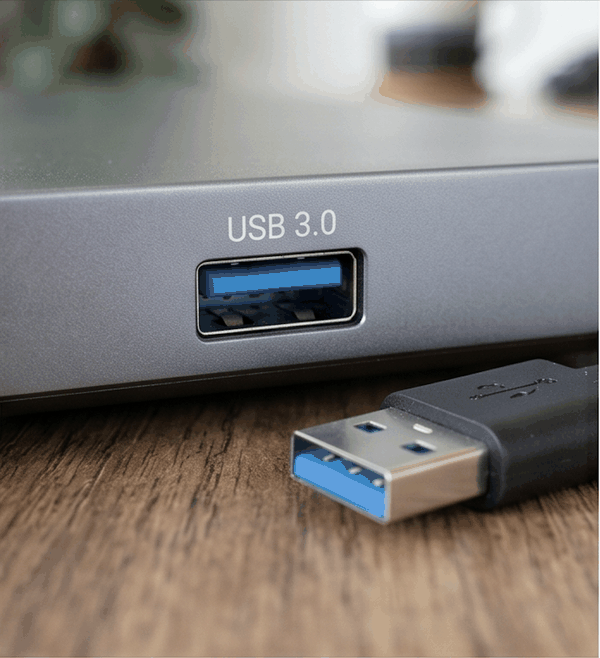 |
The one everyone pictures when they hear “USB.” A flat rectangular plug with a block filling the top half — which is why it only goes into its port one way (and why it famously takes three tries). Still the go-to for keyboards, mice, USB sticks, and most everyday accessories.
A blue tongue inside the port usually means it’s the faster 3.x kind. |
| Data | 480 Mbps (USB 2.0), 5 Gbps (USB 3.0), 10 Gbps (USB 3.1/3.2) |
|---|---|
| Video | No |
| Power | Charges small accessories only — won’t power a laptop |
| Versions | USB 2.0, USB 3.0, USB 3.1/3.2 |
HDMI — the wide trapezoid
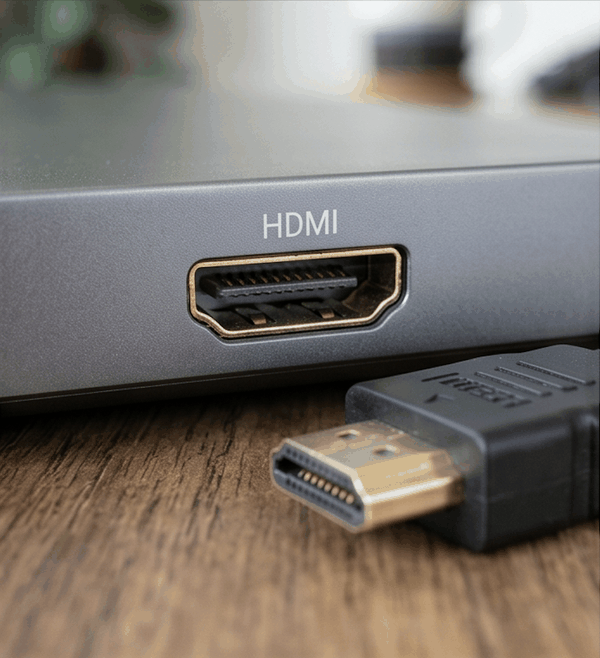 |
The plug is wider at the top than the bottom, like a flattened trapezoid — and its port is the matching slot. This is your no-fuss “plug into a TV or monitor” connection. If you just want a second screen and don’t want to think about it, HDMI is usually the easy answer.
The cable matters too — an old cable can bottleneck a newer port. |
| Data | No (video/audio only) |
|---|---|
| Video | 4K at 30Hz (1.4), 4K at 60Hz (2.0), 4K at 120Hz or 8K (2.1) — plus audio |
| Power | No |
| Versions | HDMI 1.4, 2.0, 2.1 |
DisplayPort — the rectangle with one cut corner
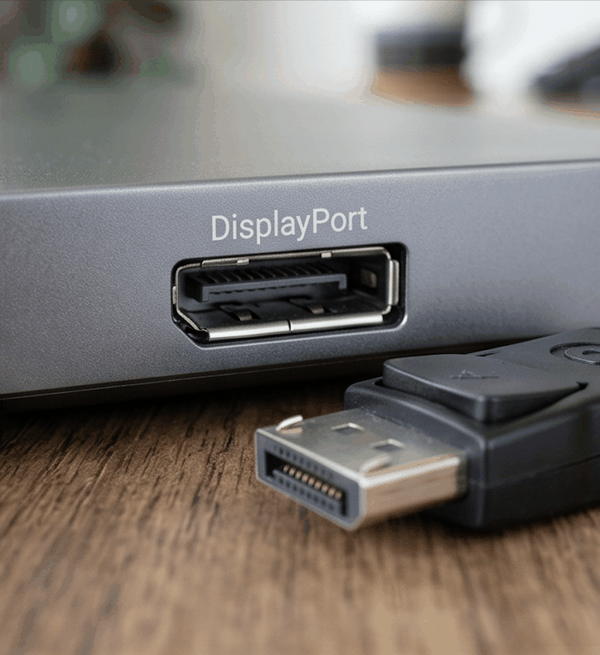 |
The plug is a rectangle with one corner shaved off, and the port matches it. Common on business laptops and desktops, and the cable often has a little latch that clicks into the port. It does the same job as HDMI — video to a monitor — and tends to handle higher refresh rates better, which matters if you’re driving a fast display.
Often the better choice for gaming or a fast 1440p/4K display. A single DisplayPort output can also daisy-chain more than one monitor. |
| Data | No (video/audio only) |
|---|---|
| Video | 4K at 120Hz (1.4), 8K and beyond (2.0/2.1) — plus audio |
| Power | No |
| Versions | DisplayPort 1.4, 2.0, 2.1 |
Mini DisplayPort — the same shape, shrunk
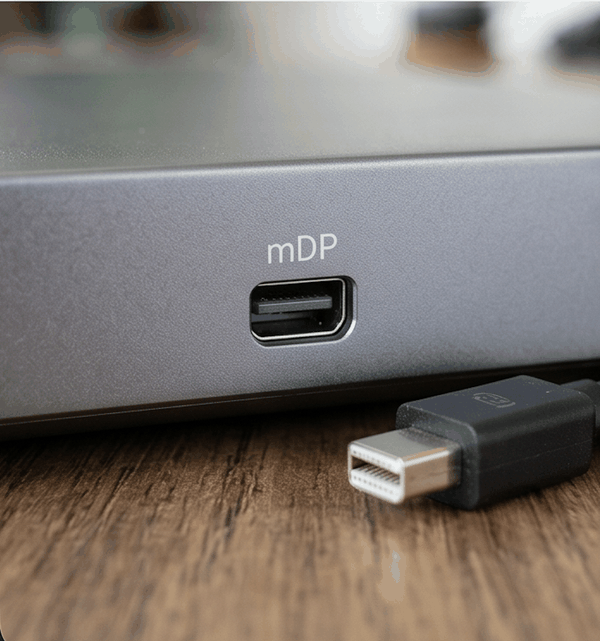 |
The same cut-corner plug, much smaller. You’ll see the matching port on older MacBooks and some Surface and business machines. Same job as full-size DisplayPort — you’ll just need the matching cable or an adapter.
Electrically identical to full-size DisplayPort, just a smaller plug. On older Macs it doubled as a Thunderbolt 1/2 port. A mini-DP-to-HDMI or mini-DP-to-DisplayPort adapter sorts out most connection headaches. |
| Data | No (video/audio only) |
|---|---|
| Video | Same as full-size DisplayPort — up to 4K and beyond by version |
| Power | No |
| Versions | Matches the DisplayPort version of the device |
VGA — the wide blue trapezoid with screws
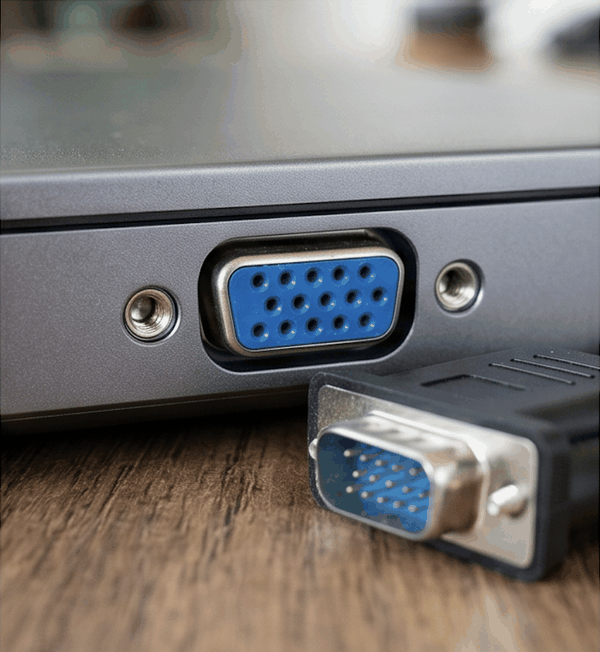 |
The old-timer, and still everywhere on refurbished and older business gear. The plug is a wide trapezoid, usually colored blue, with 15 pins in three rows and a little threaded screw post on each side that you tighten into the port. The port itself has 15 matching holes. If you’re connecting an older monitor, a projector in a meeting room, or a machine that’s been around a while, this is often what you’ll meet.
It’s analog, so the picture is softer than HDMI or DisplayPort and it carries no sound — you’ll need a separate audio cable. Still perfectly fine for a second screen, a projector, or older equipment. |
| Data | No (video only) |
|---|---|
| Video | Analog — up to about 1080p in practice; no audio |
| Power | No |
| Versions | DE-15 (also called HD-15 / D-sub 15) |
Ethernet (RJ45) — the wide jack with a notch
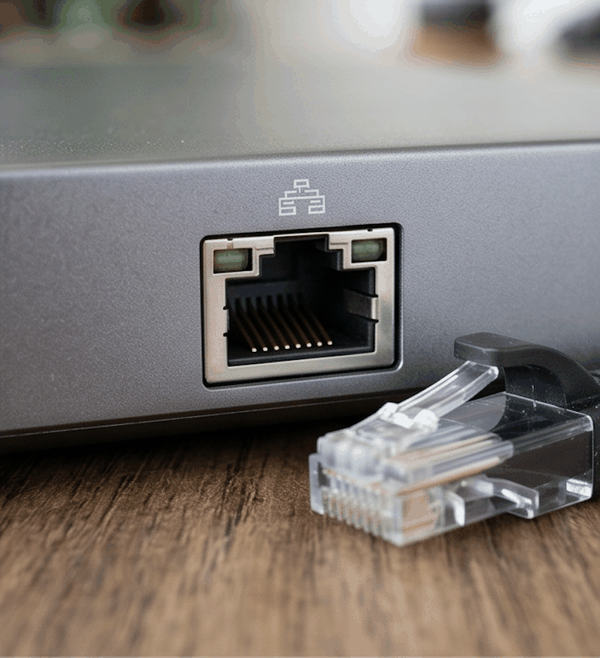 |
Wider than a phone jack, with a little notch on the bottom edge where the clip on the cable locks in. This is a wired internet connection — slower to plug in than Wi-Fi, but rock-solid once it’s in. Increasingly rare on thin laptops, common on the business machines built to last. It’s not about raw speed over Wi-Fi so much as stability. Worth using for video calls, large file transfers, or anywhere a flaky connection costs you. |
| Data | Gigabit Ethernet (1,000 Mbps / 1 Gbps) on most machines |
|---|---|
| Video | No |
| Power | No |
| Use | Wired internet — stable, low-latency, no dropouts |
3.5 mm audio — the round hole
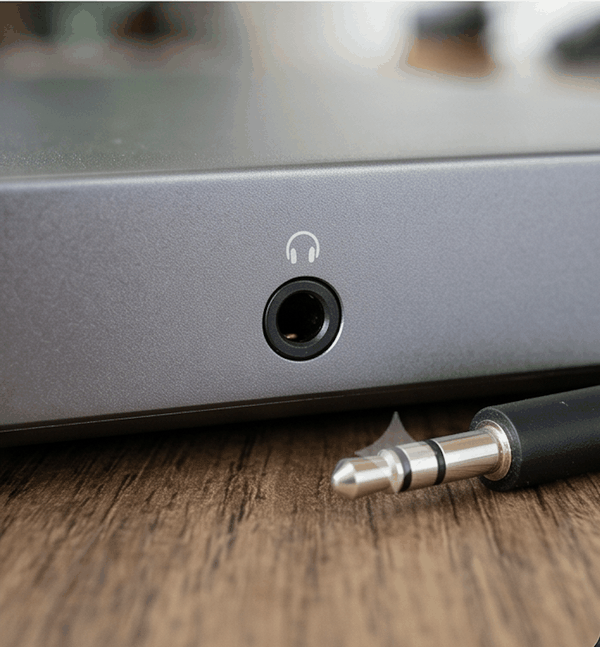 |
The one that’s a circle. Headphones, headsets, the occasional pair of desk speakers. On most laptops it’s a combo jack — audio out and microphone in through the same hole. A standard headset works fine on the combo jack. Desktops more often split them into separate color-coded jacks — green for audio out, pink for mic in. |
| Data | No |
|---|---|
| Video | No |
| Power | No |
| Audio | Analog in/out — usually one combined headphone-and-mic jack (TRRS) |
The part that actually trips people up: USB-C that won’t do what you expect
Here’s the honest truth nobody puts on the spec sheet in plain English. Two USB-C ports can look completely identical and behave completely differently. One might charge your laptop, run a 4K monitor, and move data at blistering speeds. The one right next to it might only do data. Same shape. Same size. Different jobs.
That’s why the cable “fits” but nothing happens. The port is fine — it just doesn’t do the thing you’re asking of it. The good news: laptop makers usually stamp a tiny symbol next to each USB-C port to tell you. Learn these three and you’ll never guess again.
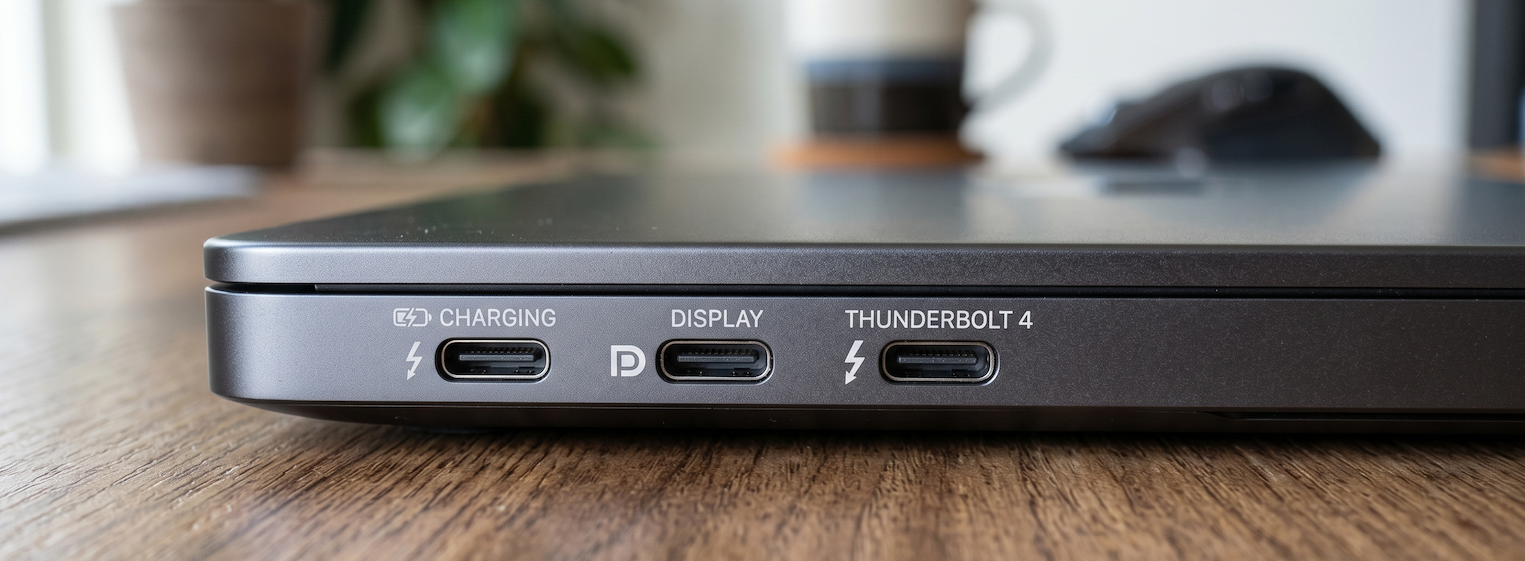
- A lightning bolt — this is a Thunderbolt port. The do-everything one: fast data, video out, and charging, all through this single port. If a USB-C port has the bolt, it’s your best bet for a docking station or an external monitor.
- A “D” shape (DisplayPort logo) — this port can send video to a monitor (it supports what’s called DisplayPort Alt Mode). No symbol like this and no bolt? Don’t count on it for a second screen.
- A battery or power icon — this port is mainly for charging. Great for power, not your port for a monitor.
No symbols at all? That happens. In that case, the laptop’s spec page or manual is the only reliable answer — and honestly, that’s the same page we check on the bench before we list a machine. The shape tells you what a port is. Only the symbol (or the spec sheet) tells you what it does.
A real example: two Dell Latitudes, different port stories
Take two popular business laptops that pass through our bench all the time, the Dell Latitude 5410 and the slightly newer 5420. Both are excellent refurbished workhorses. But their ports aren’t the same:
- The Latitude 5410 gives you three USB-A ports and a single USB-C port (with video and charging support, and Thunderbolt 3 on some configurations), plus HDMI, Ethernet, and a headphone jack. Plenty of room for older accessories.
- The Latitude 5420 trades one USB-A for a second USB-C, and both of its USB-C ports are full Thunderbolt 4 — so it’s friendlier to a single-cable dock setup, but you’ve got one fewer of the classic rectangular USB-A ports.
Neither is “better” — they’re built for slightly different desks. But if you bought the 5420 expecting three USB-A ports for your old mouse, keyboard, and webcam, you’d be one short. This is exactly the kind of thing worth checking before you buy, not after the box arrives.
Don’t have the right port? You’re rarely stuck
Here’s the good news that takes the pressure off all of the above: most ports can be converted to most other ports. Missing the one you need is usually a small fix, not a dealbreaker.
Two ways to bridge the gap:
1. A discrete adapter or cable
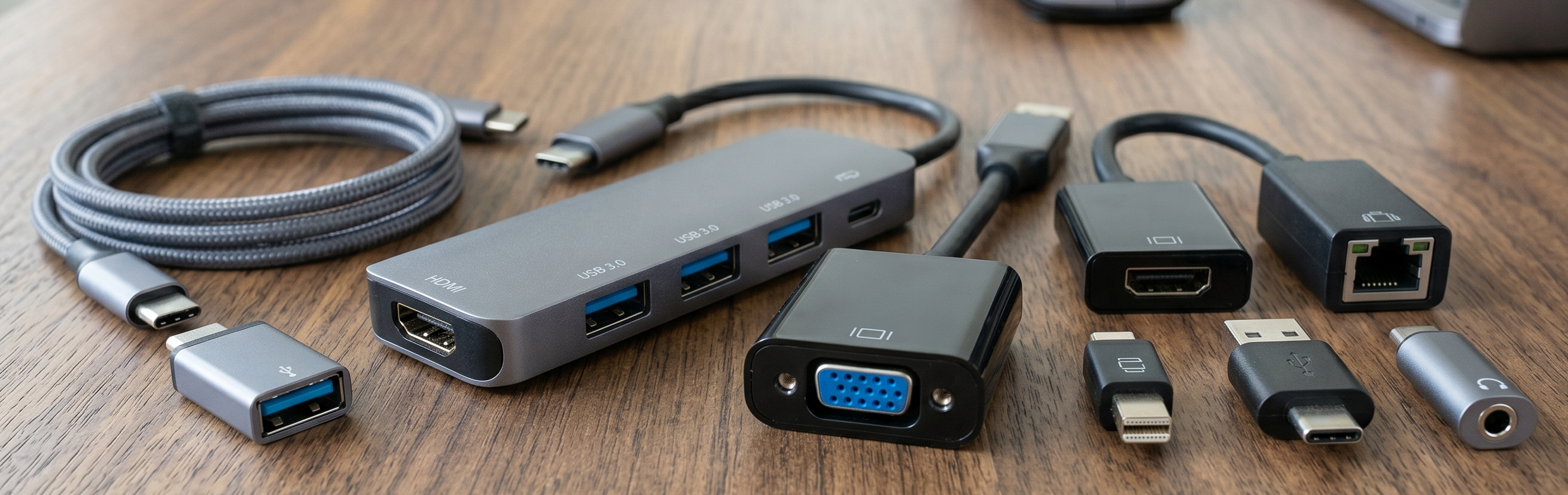
The cheap, one-job fix. USB-C to HDMI, DisplayPort to VGA, USB-A to Ethernet, and so on. If you just need to get one signal from point A to point B, this is the answer. One caveat worth knowing: an adapter can only pass along what the port already does. A USB-C port that doesn’t support video won’t magically output to a monitor just because you added an adapter — so check that symbol first.
2. A docking station
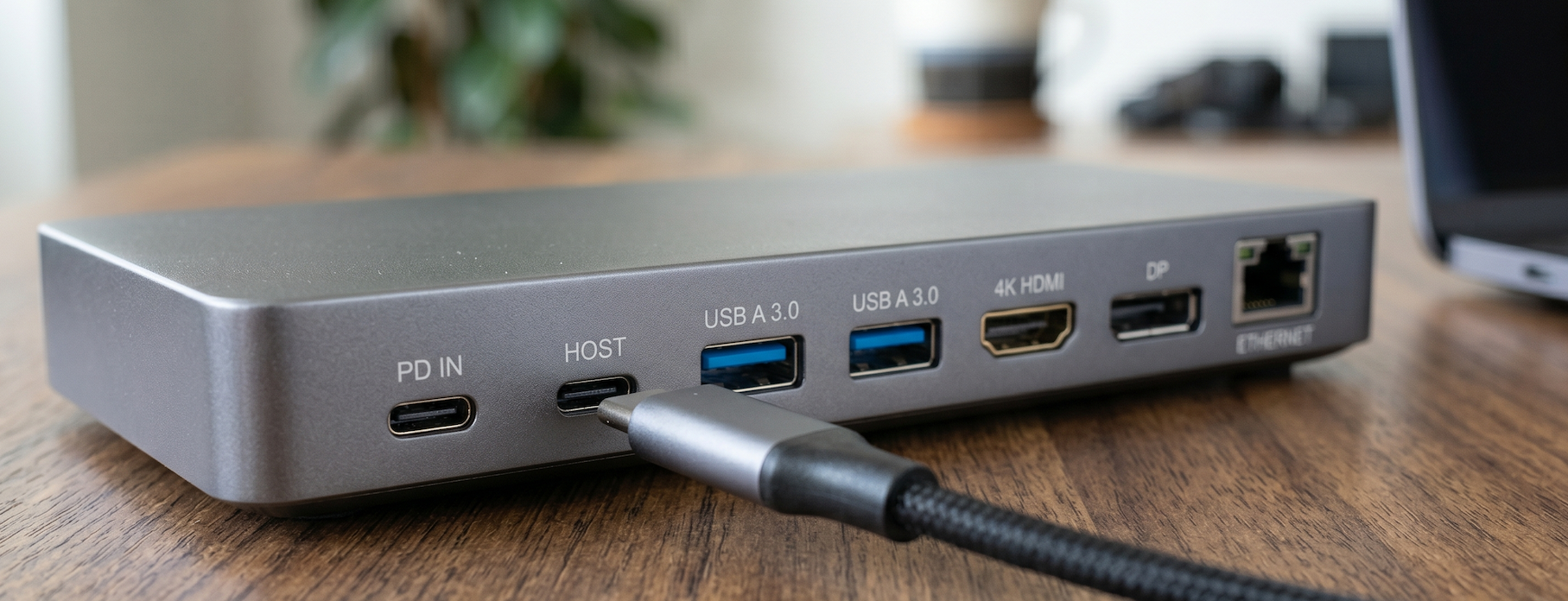
The do-everything fix. A dock plugs into a single USB-C or Thunderbolt port and fans it out into HDMI, DisplayPort, several USB-A ports, Ethernet, even power back to the laptop. If you’ve got a thin laptop with two ports and a deskful of accessories, a dock turns it into a full workstation with one cable. Thunderbolt docks carry the most; plain USB-C docks are cheaper and cover most needs.
So a short port list on a laptop isn’t the limitation it looks like. Pick the laptop you actually want, then add the right adapter or dock for your needs.
The short version
Identify the easy ports by shape: USB-C is the little oval, USB-A the classic rectangle, HDMI the wide trapezoid, DisplayPort the cut-corner one, VGA the wide blue one with screws, Ethernet the notched jack, audio the round hole. For USB-C specifically, check the tiny symbol — bolt means Thunderbolt (does everything), “D” means video, battery means charging. And if you’re missing a port, an adapter or a dock almost always bridges it. When in doubt, the spec sheet settles it.
And if you’d rather not squint at symbols at all: every laptop we sell lists its exact ports on the product page, because we log all of it at intake — down to the port — before a machine ever ships. If you’re not sure a machine has what you need, call us at (512) 459-0026 or click chat and a real tech in Austin will read you the port layout off the actual unit. That’s the kind of thing we’re happy to do before you spend a dollar.